

Last Updated on January 8, 2026 by maximosecrets
Contents
This is the third part of a series of articles exploring the Allocate Services action found in the Invoices application. In the first part we saw the Allocate Service action being used across a set of four storeroom materials and we used the Prorate button. In the second part we found out that the allocation of Standard Services with the Prorate Service field set could be automatically achieved without using the Allocate Services action, simply by approving the invoice. The automatic allocation of services is restricted to material items and service items receive no part of the prorated services.
In this third article we will explore the Allocate Service action in a little more detail.
Complex Allocation of Standard Services
In this article I want to show:
- You can allocate multiple Standard Services with Prorate Service set. We will allocate $100 of FREIGHT services and $200 of LEGAL fees, a new Service Item that I have created.
- You can choose which items to allocate services to. We will allocate the $100 of FREIGHT to three items, ITEM02, ITEM03 and ITEM04.
- You can allocate multiple Standard Services to the same item. The $200 of LEGAL fees will be allocated to ITEM01 and ITEM02, so that ITEM02 receives Prorated Cost from both FREIGHT and LEGAL.
For this scenario I will duplicate the first PO with the four items ITEM01, ITEM02, ITEM03 and ITEM04.
Service Items

I’ve created a new Service Item LEGAL – Legal Fees and marked it is as Prorate, which will be used as a default when the Service Item is used on the invoice. Note, Inspection Required is not set. This is used as the default when the item is added to a PO.
On the PO I will set both Receipt Required and Inspection Required so that you can see the difference between the LEGAL service item and the FREIGHT service item which requires neither of these nor will it be added as a PO Line.
I’ve set the Service Item LEGAL to a status of ACTIVE and allowed it to roll the status down to organizations.
Purchase Orders

I’ve duplicated the PO from the first part of this article and added the LEGAL Standard Service and set Receipt Required, Inspection Required and left Prorate Service as being set. The LEGAL fee is $200.
There are five PO lines:
- Line 1 – ITEM01 Qty 10, Unit Cost $30, Line Cost $300
- Line 2 – ITEM02 Qty 5, Unit Cost $80, Line Cost $400
- Line 3 – ITEM03 Qty 2, Unit Cost $25, Line Cost $50
- Line 4 – ITEM04 Qty 5, Unit Cost $50, Line Cost $250
- Line 5 – LEGAL Qty 1, Unit Cost $200, Line Cost $200, Receipt Required = Y, Inspection Required = Y, Prorate Service = Y
We will add the FREIGHT standard service on the invoice.
I’ve now approved PO 1103. I needed to first provide PO Line 5 with a GL Debit Account.
Receiving

In the Receiving application and the Material Receipts tab I’ve used the Select Ordered Items table window action and selected all four materials items. I’m not going to receive the LEGAL service fees at this point because I want to see how far into the Invoice process we can go before receiving a message.
Invoices

I’ve created a new invoice 1079 and referenced PO 1103 on the invoice header and used the Copy PO Lines table window action to copy all four material items and the LEGAL standard service to create invoice lines.

You can add invoice lines of type Service and Standard Service that were not referenced on the purchase order as I have done using the New Row button. I’ve added the Standard Service FREIGHT, Quantity 1, Unit Cost $100 and Line Cost $100. It is marked as Prorate Service, copied from the same field on the Service Item, notice it is an enterable field. I’ve now saved the record.

Using the Allocate Services action the dialog shows both the LEGAL and FREIGHT standard services in the table Services to Allocate, both were marked as Prorate Service. Now we can select one at a time and decide how we wish to allocate the charges.

I’ve selected the FREIGHT standard service of $100 and selected to allocate to ITEM02, ITEM03 and ITEM04 in the bottom table window. I haven’t used the Prorate button yet.

After using the blue Prorate button the FREIGHT standard service is now showing as having been Prorated. The sum of $100 has been allocated over the three selected items proportionate to the Line Cost for each item. Notice how the Prorated Cost is an enterable field, if you do not want to allocate proportionally you can modify the values. We’ll see that in action when we allocate the LEGAL fees.

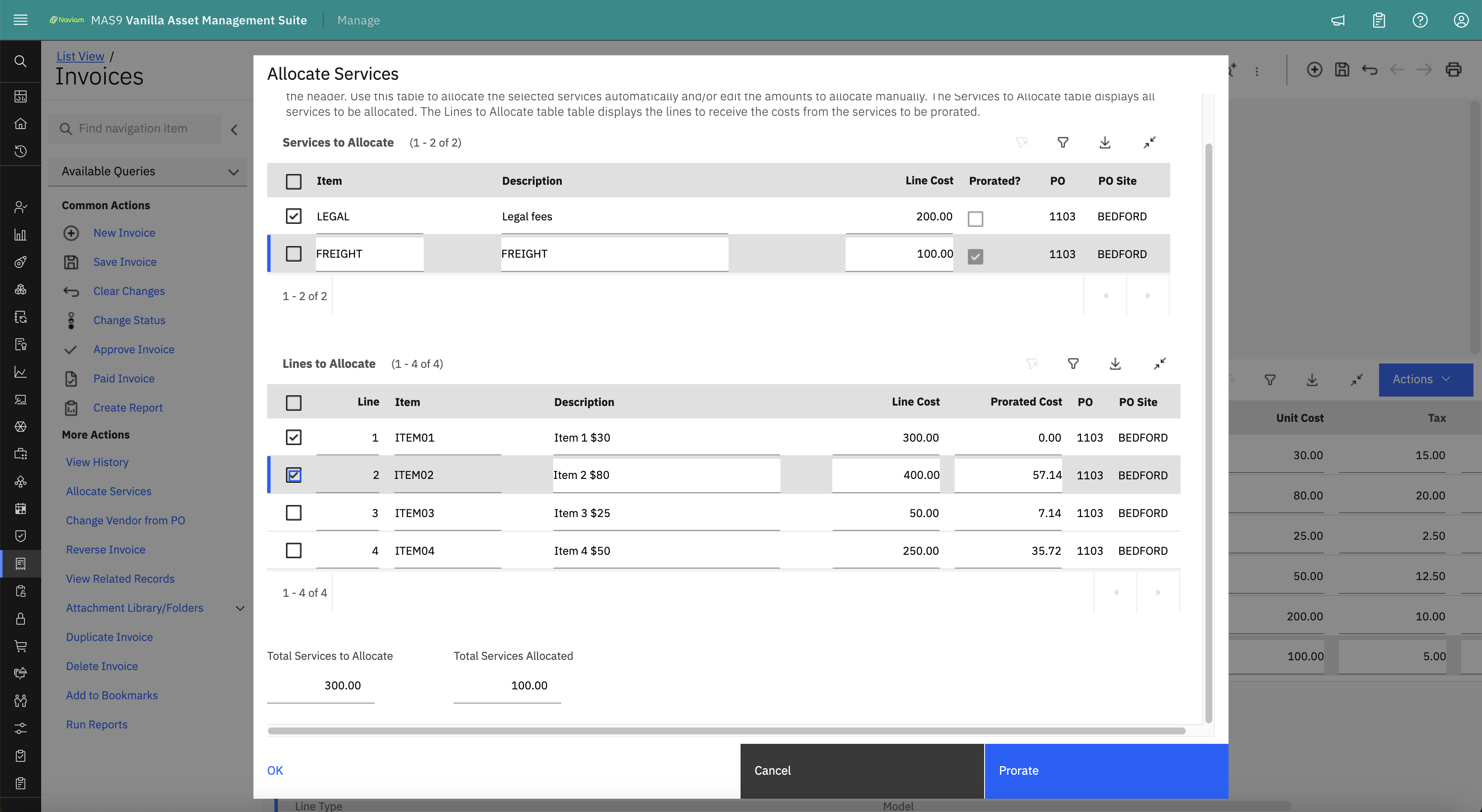
I’ve now selected the standard service LEGAL, and we will allocate $200 to ITEM01 and ITEM02 so that ITEM02 receives the allocation from both FREIGHT and LEGAL. I am just about to use the blue Prorate button.

Well, the result of using the blue Prorate button was a little unexpected as quite clearly it shows a defect which I have reported to IBM Support.
There was $200 of LEGAL fees to allocate over ITEM01 and ITEM02 totalling $700. I was expecting ITEM01 to receive $85.71 which it did do. I was expecting ITEM02 to receive the remaining amount from $200 i.e. $114.29. It increased from $57.14 to $71.43 i.e. $14.29. It should have been $171.43
I wasn’t expecting to make this amendment, but it illustrates the point just as well. You can go into the Prorated Cost column and amend the value. So, I’ll make the correction for ITEM02 to make this $171.43.

I’ve now manually changed ITEM02 to have a Prorated Cost of $171.43.
Incidentally, if before you had done this you had tried using the Prorate button again you would have received the following warning – BMXAA1954W – The service amount has already been prorated. Manually edit the allocated amounts or click OK to leave the page.
As the Total Services to Allocate and Total Service Allocated are both the same, we can use the OK button.

For Invoice Line 1 and ITEM01 the Line Cost is $300, the Prorated Cost is $85.71 the amount shown in the Allocate Service dialog, which gives a Loaded Cost of $385.71.
For Invoice Line 2 and ITEM02 the Line Cost is $400, the Prorated Cost is $171.43 the amount shown in the Allocate Service dialog, which gives a Loaded Cost of $571.43.
For Invoice Line 3 and ITEM03 the Line Cost is $50, the Prorated Cost is $7.14 the amount shown in the Allocate Service dialog, which gives a Loaded Cost of $57.14.
For Invoice Line 4 and ITEM04 the Line Cost is $250, the Prorated Cost is $35.72 the amount shown in the Allocate Service dialog, which gives a Loaded Cost of $285.72.
For Invoice Line 5 and LEGAL the Line Cost is $200, the Prorated Cost is -$200.00 and the Loaded Cost is $0.00. It has been fully Prorated.
For Invoice Line 6 and FREIGHT the Line Cost is $100, the Prorated Cost is -$100.00 and the Loaded Cost is $0.00. It has been fully Prorated.
There is no change in the Receiving application for PO 1103 until you approve the invoice which we are ready to do.

When I went to approve the invoice, I received the following error:
BMXAA2013E – Could not change invoice 1079 status to APPR.
BMXAA1993E – Cannot approve invoice 1079 because there are no matching receipts for line 5 of purchase order 1103.
I was expecting this. It is because we set Receipt Required on the purchase order line for the standard service LEGAL.
Receiving (Service Receipt for LEGAL service item)

Back on the Receiving application and the Service Receipts tab, I’ve used the table window action Select Ordered Services and selected the LEGAL item to receive.

After pressing OK the Service Receipt record (SERVRECTRANS) will have been created with an Issue Type of RECEIPT. Notice that its Inspection Status is WINSP – Waiting for Inspection, this is because the purchase order line had Inspection Required set.
Invoices (After Service Receipt for LEGAL service item)

I went back and tried to approve the Invoice expecting an error to say that the receipt had not been approved but I received a different error which again I have reported to IBM Support as I believe it is a defect:
BMXAA2013E – Could not change invoice 1079 status to APPR.
BMXAA1981E – The sum of all invoice quantities for invoice 1079 for line 5 of purchase order 1103 exceeds the quantity that has been received.
We saw in an earlier illustration in this article that Maximo will create a negative SERVRECTRANS record for any received service, effectively reversing the receipt so that the standard service could be prorated to other items as part of invoice approval.
I am hoping that if I go back to the Receiving application and approve the Service Receipt that I’ll now be able to approve the Invoice. The error BMXAA1981E is misleading as it is not identifying the root cause of the issue which is that the receipt needs to be completed before being able to reverse it.
Receiving (Complete Inspection on Service Receipt for LEGAL service item)

On the Receiving application and Service Receipts tab I have used the action Change Inspection Status and selected the Legal Fees. I am approving the receipt of the legal fees in this case a quantity of 1. You can create a purchase order with service lines with a null quantity; I’ll do this in Part 4, that presumably would have avoided the error message.
Invoices (After Service Receipt for LEGAL service item is completed)

As you can see, back on the Invoices application we have been able to approve invoice 1079 for PO 1103, it is now at a status of approved (APPR).
I did check the Receiving application and there were four new Material Receipt (MATRECTRANS) transactions of Issue Type INVOICE and Quantity 0 and there were three Service Receipt (SERVRECTRANS) transactions of Issue Type INVOICE, two for item LEGAL and one for FREIGHT. One of the transactions for LEGAL was reversing the Receipt made for the standard service. I also checked the new Average Costs for ITEM01, ITEM02, ITEM03 and ITEM04 and all were correct.
This wraps up this article, Part 3 in the series on Allocate Services. We have revisited the Allocate Services action in the Invoices application and shown that you can allocate multiple standard services within the same dialog, and you can use the Prorate button against specific invoice lines so that one invoice line might receive allocated services from multiple standard services. We also showed that you can manually determine how to prorate the standard service.
When you use the Prorate Service field either on a PO line or Invoice line, I think it better to not have Receipt Required or Inspection Required set on the PO line. The main reason for this is that Maximo will reverse out the service receipt when the invoice is approved, we have also shown that for standard services which are going to be prorated you don’t need to reference them on the purchase order, they can be added on the invoice. However, when financial processes are shared between Maximo and an ERP or other procurement, or accounts payable system, then there might be good business reasons for applying an initial service receipt or indeed being forced to include a standard charge with an estimate of its value on the purchase order.
Unfortunately, in this section of the article we did find a couple of issues, and they have been reported to IBM Support.
In Part 4, we will continue to explore the Allocate Service dialog and show that you can prorate a standard service against other services.