

Contents
The best way to describe a Work Queue is that it is a query that will produce a result set against which one or more actions can be applied. The Work Queue Manager application will be found in the Administration module. It was new to MAS 8.11 (September 2023) and has been enhanced in MAS 9.0 (June 2024) and I expect it to be enhanced again in MAS 9.1 in 2025.
The Operational Dashboard is the modernized equivalent of the Start Center. One of the Cards (similar to a Start Center portlet) that can be added to the Operational Dashboard is a Work Queue, and when rendered will display the work queue records and from each of these you can then see the details in a tabular form. It is these details which are equivalent to the Start Center Result Set. It is one extra click, but you only need one card to show the results of many queries instead of one Result Set portlet for each query. It should be quicker to render compared with a Start Center with several result sets portlets, and it will take up far less space as the query results open in a full-sized screen, the screen can also contain more columns than were practical in the Result Set portlet.
The changes made in the MAS 9.0 release was to allow work queues to be created on other objects other than work orders, and to add in security by associating a work queue with one or more person groups. Functionality to add conditions to actions was not ready for the 9.0 release, and it has not appeared in the first MAS 9.0 fix pack, so I think it will be held back to 2025.
The tests and screenshots in this article have been made on a MAS 9.0 system with a fix pack – Maximo Manage 9.0.49 Build 20240717-0823 DB Build V9000-01 HFDB Build HF9000-1
Modifying an existing Work Queue

When you enter the Work Queue Manager it shows the work queues previously created, equivalent to the List tab in classic Maximo applications, the Work Queue Manager has been developed using the Maximo Application Framework. If you compared with the screenshot from the MAS 8.11 article, you’ll find that there are additional columns for the Object Structure, Query, App and Author.
On the right-hand side there is the Edit work queue button, but you need to scroll over the record to see it.
The Count is the number of records that would be retrieved by the work queue query. The State is a YORN field, Active (1) Inactive (0). The supporting WORKQUEUE object is defined at the System level.
Incidentally, another new feature of MAS 9.0 was to allow white labelling, you can see the banner is coloured blue and the Maximo Secrets logo appears on the left-hand side.

If you use the Edit work queue button, you are presented with a screen designed as a wizard with three steps the first being – Define work queue.
There are three fields displayed:
- Name – The unique name of the work queue (Upper 25)
- Description (ALN 100)
- Priority – This is the priority of this work queue relative to other work queues. It is an Integer field with a numeric domain called WORKQUEUEPRIORITY, where 1 = Urgent, 2 = High, 3 = Medium and 4 = Low.
Below these three fields is a table where you can enter one or more Person Groups, I’ll return to this later.
You use the blue Next button to go to the second step in the wizard.

The second step in the wizard is Define query. The work queue is based on an Object Structure, a Query and an application to launch. When you are editing a work queue you cannot modify the Object Structure or Launch Application, but you can change the Query.
Be careful, the Select Value on the Query field doesn’t restrict the queries to the object structure, so if you pick a query that doesn’t exist for the object structure and save, the Work Queue Manager will no longer show any work queue records, so that it is difficult now to make a correction. You need to add the query to the object structure to overcome this problem. At the time of writing this is a known issue DT392639 (it was fixed in August 2024 MAS 9.0.2 release). The other issue is that if you have the same query name for multiple object structures you will not be able to determine which one to use, if the filtering was being applied, this would not be an issue.
The work queue AJE01 I created as a test, previously in MAS 8.11 work queues were restricted to a specific object MXAPIWODETAIL and the launching application could only be WOTRACK. You can see that in MAS 9.0 you can use a different object structure and launch to other Maximo applications. Later I’ll try launching to the new Work Orders application.
At the bottom left you see the fields which are defined by the Object Structure, and you can select using the check box on the left the fields that you wish to see when the Work Queue is launched. There are currently three Selected fields – ticketuid, ownergroup and commodity, not the fields you would normally want for a Service Request work queue, we’ll change those next.
You can filter for the fields in the Search area, but you’ll need to know the attribute names.

When you select a field in the Available fields panel it is automatically added to the Selected fields panel. You can use the button to the left to drag it to reposition it, the order of the Selected fields from top to bottom will be the order of the fields displayed left to right when the work queue shows the results of the query.
To deselect the field, the button on the right, which is highlighted in the screenshot, does not work, I’ve created an IBM Support case for this. To remove one of the Selected fields, you need to query for it and then deselect it from the left-hand panel, which is what I have done for the Commodity field, so that there are now six Selected Fields.
I will follow the blue Next button to get to the third step – Add actions. But notice that the Back button is enabled, and you can cancel the creation/update of the work queue.

The third and final step in the wizard is optional, Add actions. The actions which appear on the left can be selected and then they appear on the right as Selected Actions. I’ve selected several actions; these are actions you’ll find in the Actions application for the object SR. I’ve chosen Apply SLA, Create Work Order, and the change status actions for Queued, In Progress and Resolved.
You use the blue Update button to save your changes.
Reviewing the work queue on the Operational Dashboard

The Operational Dashboard is the modernized equivalent to the Start Center for Maximo, I’ve written an article on this, but I’ll need to update it with the MAS 9.0 changes – https://maximosecrets.com/2024/03/01/operational-dashboard/
You can tell from the colour of the banner that this is an old screenshot. There is a vertical scroll bar on the right.

The Operational Dashboard that I am showing is called Emissions Management which you will only find if you have the Health, Safety and Environment (HSE) add-on. At the bottom, on the right is a card defined to show the active Work Queues. It shows the three work queues including AJE01 – Andrew’s Work Queue, which I modified in the last section.
There is a link on the Queue Name, in blue text.

When you open the work queue from the operational dashboard card it displays the results of performing the query, in this case showing the six selected fields as columns, ticketid, description, owner, ownergroup, reportedpriority and internalpriority. The column titles come from the Title attribute defined in the Database Configuration application for the objects.
You can open a filter record below the column titles, you can also sort by a column. The columns can be personalised, and you can export the data. I’ll return to these features later.

If you select a record, service request 1144 in my case, the actions we added to the Work Queue appear in a blue banner above the table. There is also a button on the right-hand side which launches the associated application. If you hover over the record, it says View Record. In my case it launched the Service Requests application with SR 1144 selected, with the breadcrumb at the top-left which provides navigation back to the Operational Dashboard, there is also the Return button.
In MAS 8.11 if you launched to an application then any filtering, or sorting, was lost, this has been corrected for MAS 9.0. However, if you were several pages in and then launched the record, a record of which page you were on has been lost, and you return to page 1. This has not been corrected yet, it is an IBM Idea, which you can vote for here – https://ideas.ibm.com/ideas/MASM-I-1169
When I used the action to change the status to QUEUED on two records by using the action SR QUEUED both SRs were changed to the status and a status history record was created. Incidentally, the filtering and sorting is not lost if you perform an action, however, it does currently return to page 1 after the action has been performed.
Creating a new Work Queue

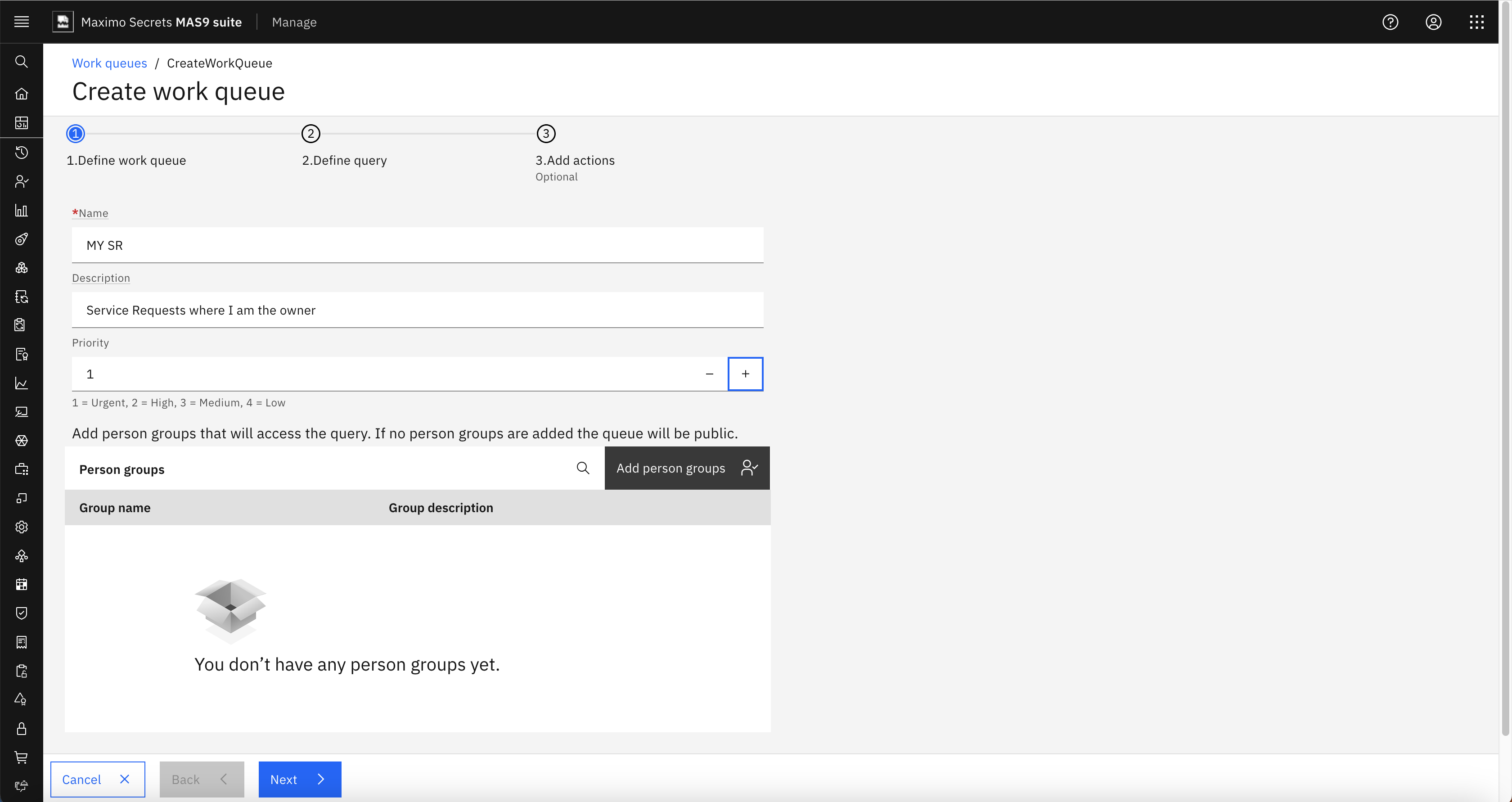
I’ve used the button Create Work Queue and created a new work query called MYSR – Service Request where I am the owner. I’ve made it Priority 1 – Urgent. I’ll come back to the Person Groups towards the end of this article.
I’ll use the blue Next button to go to the Define Query step.

In MAS 8.11 the Object Structure was hard-coded as MXAPIWODETAIL. In MAS 9.0 you can change the Object Structure, MXAPIWODETAIL remains as the default value.
The Select Value shows over 300 object structures on my system, but the convention used for applications that are built in the Maximo Application Framework (MAF) is to prefix the object structures with MXAPI. I searched for and found MXAPISR.

The Query and Launch Action fields are mandatory and will be highlighted in red when you return the value for the object structure. I chose SERVICEREQUEST as the Query and SR as the Launch Application, both Select Values were filtered by the Object Structure.
The queries are either those defined on the Object Structure in the action Query Definition or those that are defined against an application that can be launched, in which case they are preceded with the application name, for example VIEWSR: or SR:.
The default Work Queue State is Active.

I’ve selected 6 attributes, ticketid, description, status, owner, ownergroup and reportedpriority. The attributes you can select in the Available fields panel in the bottom-left of the screen are only those that exist on the parent Object Structure. This means that if you had an object structure on SR with a child object of ASSETS then you would not be able to show the description of the asset.
I’ve raised an IBM Support case for this, it was evidently in the design of MAS 9.0, but it wasn’t delivered.

On the third step to creating a new work queue I associated the four Service Request status change actions for Queued, In Progress, Pending and Resolved. I then used the blue Create button.

The Work Queues card on the Emissions Management Operational Dashboard now shows the new MY SR work queue. As the query is the same as the AJE01 work queue it shows 35 records. Notice the column title is Owner it should be Count, I’ve raised an IBM Support case for this, it seems to be an intermittent issue.

Launching the work queue shows the same set of service requests as we saw before but with a different set of actions and the default one Clear Selections, which clears any records you may have selected.
Using Person Groups with a Work Queue

Previously I have been logged in as WILSON. The SERVICEREQUEST query is defined as (reportedby=:&personid& or affectedperson=:&personid&) and shows the service requests where the logged in user is either in the Reported By or Affected Person fields on the service request. If I log in as WINSTON, I see the two service requests, 1002 and 1095, where WINSTON is referenced as the Reported By or Affected Person.

When editing the work queue, you can select multiple Person Groups to associate with a Work Queue. I have selected the Person Group MAINT which has WILSON and HUNTER as members, but not WINSTON. On this dialog the (X) button works and deletes the selected group.

When the person group has been selected, MAINT now shows in the set of Person Groups. Notice the text above this table which says – Add person groups that will access the query. If no person groups are added the queue will be public.
It is a bit annoying, but you need to navigate the wizard to the last page before you see the blue Update button. The wizard approach is good for creation, but a bit slow when you are updating. I created an IBM Idea https://ideas.ibm.com/ideas/MASM-I-1178 Work Queue Manager – a blue Update button should appear as soon as you make a change to an existing work queue.
When I returned to the Emissions Management dashboard logged in as WINSTON, I could no longer see the work queue. Unfortunately, when I logged in as WILSON, I couldn’t see the work queue either. I tried adding a Person Group to other work queues, I even added more than 20 person groups to one work queue, and the work queues always seems to be hidden when a person group exists. I raised an IBM Support case for this.
All Person Groups have now been removed from the Work Queues.
Work Queue Personalisation

When you are viewing the contents of a work queue one of the buttons displayed above the table columns is Manage Columns. This opens a series of black buttons, one for each column, the order can be changed by dragging the column to a new position.
I am logged in as WINSTON showing two service requests, 1002 and 1095 which Winston raised or where Winston was the Affected Person. WINSTON does not have access to the Work Queue Manager, they only see the work queues created by an administrator like WILSON.
There is a blue button Manage Columns which allows you to add new columns.

When the Manage Columns dialog opens the existing columns are shown on the right in the Selected pane. In the left pane are all the fields of the main object in the object structure, in my case SR. You cannot yet select attributes from child objects. You need to use the Search or do a lot of vertical scrolling in the left pane.

I’ve added two new attributes Reported By and Affected User and will now use OK to save the changes and close the dialog.
At first, I received the error BMXAA0024E – The action ADD is not allowed on object VIEWMANAGER. Verify the business rules for the object and define the appropriate action for the object. I needed to go to Security Groups and add permissions to the Object Structure authorizations for MXAPIVIEWMANAGER. These permissions should be applied using a Security Template for the Operational Dashboard, but the Security Template hasn’t been updated, so I’ve raised an IBM Support case about this.
It did occur to me that there is no ability to see the Applications, Security Templates and Security Groups that use an Object Structure, so I’ve raised an IBM Idea about this. https://ideas.ibm.com/ideas/MASM-I-1179 – Object Structures – There should be a way of seeing which applications, security templates and security groups use the object structure.

Also, while still logged in as WINSTON I’ve added a filter on the Status column for QUEUED. There is no save button, so I logged out and logged back in to see what the Operational Dashboard and Work Queue would look like when I returned. The new columns and the filter were still in place.
I then wondered, WILSON who owns the work queue, as they were the creator, how do they personalise it, while retaining the original which new users would use. I sort of guessed the answer to this, they personalise it from the Operational Dashboard, but they change the original from the Work Queue Manager application, but I thought I would prove this.

When logged in as WILSON, I found that he had also picked up the personalisation that WINSTON had created, the two additional columns and the filter on the Status column for QUEUED. Not exactly personalisation, another case I’ve reported to IBM Support.
Another issue I reported to IBM Support is that when the work queue has personalisation then it no longer launches the record, if you remove the personalisation, it works perfectly.
I did test the Export function, and this worked perfectly. You receive a couple of messages along the way and when it is completed it shows the record created in your downloads folder.
Navigating to the Work Orders application

I wanted to check that you could launch to the new Work Orders Role Based Application from a work queue. I went to change an existing work queue that referenced a work order object, but the Launch Application is read-only, you can modify the query field.
I created a new work queue called MYWO using the Object Structure MXAPIWODETAIL with a query of APPROVEWORK and selected the Launch Application of WOSUMMARY, which is the name of the new Work Orders application. I’ve selected five fields wonum, description, status, worktype and wopriority. I haven’t added any actions.

When I opened the Operational Dashboard, I didn’t see it at first, with the column headers it only shows four work queues but there is a vertical scroll and MYWO was found. I did some later testing in this area, and I found that if you created more than 5 work queues they would not display, you cannot scroll down, and the paging isn’t working. I’ve raised an IBM Support case for this. You can search for the work queue, assuming you know what it is called.

The MYWO work queue was displayed, in this case the query showed just one work order 1317.
When you launch to the Work Orders application from the View Record button on the right when you hover over the record, then the Work Orders applications was launched but it didn’t load the work order and there was no breadcrumb or Return button. I’ve raised a case with IBM Support for this.
Delete Work Queue

It didn’t occur to me when I wrote the article for MAS 8.11, but this time I wondered how to delete a work queue. It wasn’t unfortunately that obvious (not to me at least), you need to make the work queue Inactive first, then the trashcan button for Delete Work Queue appears. You’ll have a confirmation message to respond to.
That’s it really, a bit disappointing that I had to raise so many IBM Support cases. It is an improvement on MAS 8.11 in that at least you can raise work queues on other objects. You can’t reference columns from child objects as you can with a Start Center Result Set (using a relationship), for example you would not be able to show the description of the work order’s asset. There is also no ability to visualise the same data graphically as there is in the Result Set portlet on the Start Center.
What is useful when comparing to the Start Center is that you see in one card which queries would retrieve records. In Start Centers you would need to review multiple Result Set portlets where the information has already been fetched from the database. Sometimes those queries on large databases are not immediate, and it can often lead to performance issues, a count of records should be faster.
There are other features of a Start Center result set portlet which are not available yet. There is no display of the data graphically, and there is no ability to launch the application with the result set, only launch one record at a time.
You can vote for these two enhancements by using the links below.
Operational Dashboard – Work Queue card to have a Chart View option similar to Result Set portlet on a Start Center
There should be the ability to display the Work Queue card in both a List View (as it does today) and a Chart View which is available on the Result Set portlet in the Start Center.
https://ideas.ibm.com/ideas/MASM-I-1056
Operational Dashboard – Work Queue card should be able to launch the application with the result set from the query
There should be the ability to navigate to the launch application and perform the same query so that it fetches the same result set of records. This would give the same result as the button Open Result Set in the toolbar of a result set portlet on the Start Center.
https://ideas.ibm.com/ideas/MASM-I-1055
There are two other Work Queue ideas I’ve created
Work Queue Manager – A blue Update button should appear as soon as you make a change to an existing work queue
If you have an existing work queue which you are modifying you need to navigate to the last page, Add Actions, before you can see the blue Update button, a bit annoying, it should appear straight away. Example, you would create a work queue and test that it works before adding a Person Group and testing the security. Person Group is on the first page, now I must page through to the last page to save.
https://ibm-ai-apps.ideas.ibm.com/ideas/MASM-I-1178
Work Queue Manager – Maintain Filtering and Sort after you return having navigated to a record
The Work Queue provides a list of records which you can filter and sort. But when you navigate to an application, for example Work Order Tracking and when you use the breadcrumb or return to the work queue, the filtering and sorting is lost, and you are back on page 1.
The filtering, sorting and position in the work queue needs to be maintained to improve useability.
Note. The filtering and sorting is no longer lost but the page position is lost, you are back to page 1. The same applies when you return from performing actions on the work queue.
Leave a Reply