

Last Updated on May 21, 2025 by maximosecrets
Contents
The obvious example of an asset alias is the fleet vehicle’s number plate, or license plate. As it is possible for number plates to change over time, it is not a good idea to use this as the Asset Number which can never be changed as it is part of the unique key. Asset Aliases is a way to address this, it allows you to enter either the Asset Number or an Asset Alias when referencing an asset. We’ll see in this article where asset aliases have been implemented.
Assets (TR) – Aliases Tab

In the Assets (Tr) application I am in the FLEET site and have chosen asset 601995 – Class 6 Truck. You can see that the Assets (Tr) application has a few additional tabs, and fields. I will be exploring those in future Transportation articles.

If you scroll to the bottom of the main tab of the Assets (Tr) application there are a set of tabs (more functionality to explore), one of which is Aliases.
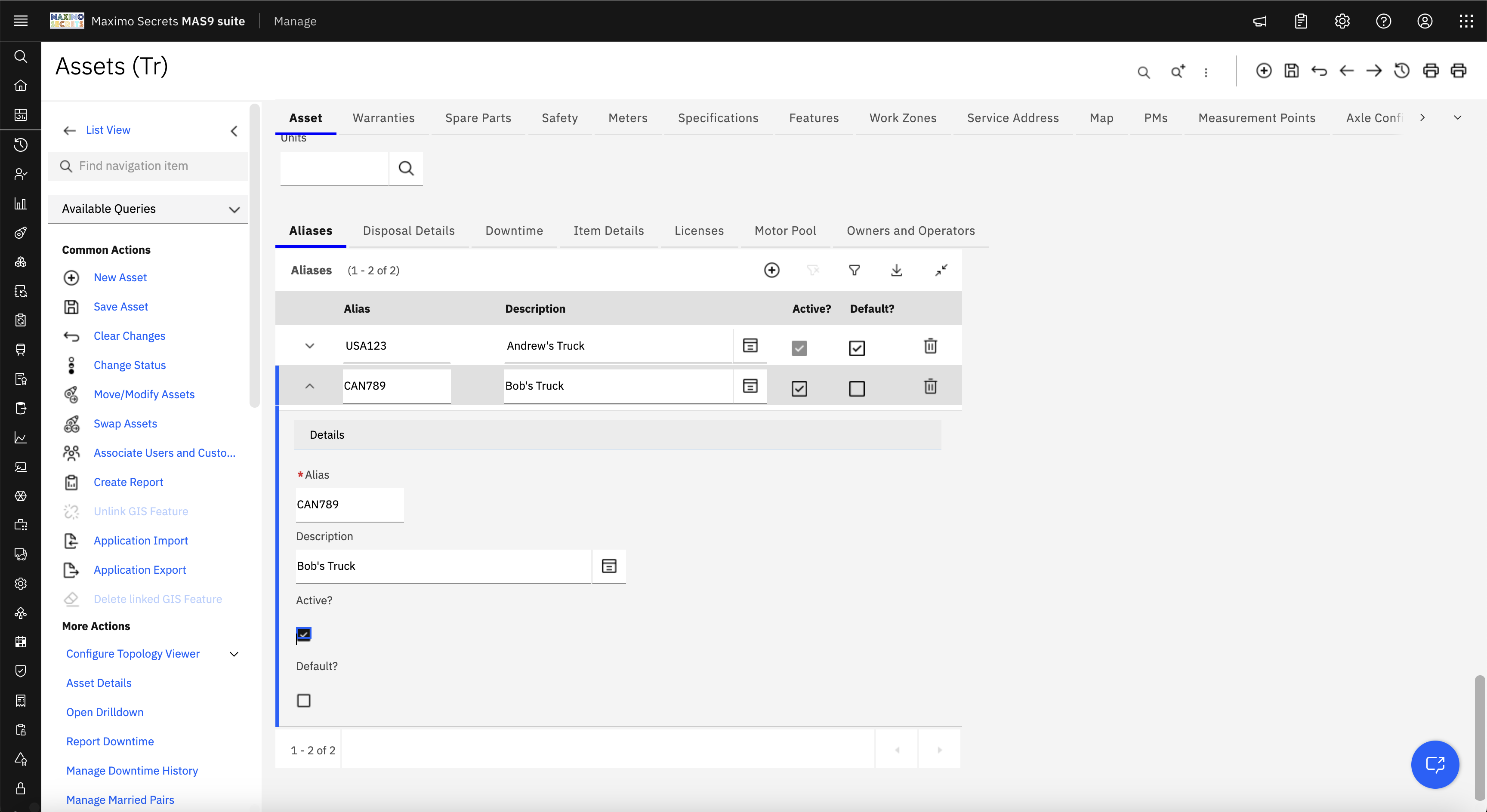
I’ve entered one asset alias USA123 – Andrew’s Truck. It is marked as Active and is the Default. The table details have the same four fields.
If you were wondering about seeing some check boxes instead of toggles, this is because my system has the MAS 9.1 Feature Channel enabled. Check boxes must be one of the minor UI changes coming in the June 2025 release for MAS 9.1. You can see another UI change in the toolbar, the first two buttons are Find Asset, and More Search Fields, the advanced search dialog will become available using a single click when MAS 9.1 is released.

The same asset can have multiple aliases. I’ve entered a second alias CAN789 – Bob’s Truck. The record has not been saved yet, the fields Active and Default are both accessible.

I have changed the Default field to asset alias CAN789 and it has removed the default setting from asset alias USA123, only one asset alias can be marked as the default. One asset alias must be set as the Default, otherwise you will get error – BMXAL0279E – You must specify one alias as the default alias.
While you can make an asset alias inactive, you cannot do this for the record marked as the Default, the Active field is read-only.
You can delete an asset alias, but not if it is marked as the Default, you will receive the error – BMXAL0278E – You cannot delete this record. You need to uncheck the Default field, then you can immediately mark it for deletion. However, if there were multiple asset aliases you will need to make another alias the Default before you can save.
Incidentally, if you try to use an inactive asset alias you will receive the message – Asset CAN789 is not a valid asset, or its status is not an operating status. (BMXAA0090)
You cannot create an asset alias until you have saved the asset record, you will receive the message – BMXAL0282E – You must save the asset record before you can create asset aliases.
You cannot make an asset alias the same identifier as the asset number, you will receive the message – BMXAL0281E – An alias cannot be the same as the asset identifier.

The Assets (Tr) List tab has a column for Alias, it shows the default alias.
The same Asset Alias can exist on multiple asset records both for the same site and on different sites. I have made USA123 the default alias for asset 601995 and I have also made it the default alias for asset A6002 – Highway Tractor, Class 8 Truck, Cummins M11 , Spic in the FLEET site.
If you looked at my system you would also find a new asset AJE12 in BEDFORD site with the same default alias, USA123.
Now we have some aliases set up we’ll see how they are used in other Maximo applications.
Asset Alias in Asset Lists (Tr)
In the article on Asset Lists (Tr) and Campaigns (Tr) I did make a reference to using asset aliases, this is a simple application which will help to explore the functionality a little more deeply.
An Asset List is like the Routes application in letting you reference multiple assets or locationsA physical place where assets exist and where work can be performed. More. An Asset List is applied to a Campaign.

On the Route Stops table window of the Asset Lists (Tr) application if you type into the Asset field an asset alias, then in most cases it will find the asset with that asset alias and use that instead. However, if the asset alias is on multiple assets the Select Value button will appear in the asset field, and when opened it will show the asset records that have that asset alias.
In my case I used USA123, and it showed the two asset records with USA123 as the asset alias, assets A6002 and asset 601995. The Select Value filtered the asset records by the site FLEET because the Asset List was for the FLEET site.

After selecting asset 601995 it has been entered into the Asset field and its default alias has been added to the Alias field.

This time I have typed in the Asset field CAN789, but I have not tabbed out of the field yet. CAN789 was also an asset alias of asset 601995.

On leaving the Asset field the entered alias has found that it belongs to asset 601995 and this has been entered in the Asset field, and it has taken the Default Asset Alias USA123 and added that to the Alias field. The Alias field is always set to be read-only.
This is the functionality of asset aliases; you can use them to find the asset record for which it is an alias. Sometimes you might get a Select Value, if there are multiple asset records with the same alias, otherwise the asset field will be populated with the asset number and the default asset alias will be shown in the Alias field.

The More Search Fields dialog doesn’t have a field for Alias, but you can still make a search using the Alias by using the Select Value on the Asset field and performing a search in the Alias column.
Notice the extra asset record for AJE12 in BEDFORD site which has the same asset alias USA123.
Asset Alias in Preventive Maintenance (Tr)

In the Preventive Maintenance (Tr) application an asset alias can be used in the Asset field. When I typed USA123 the Select Value appeared, and I selected the record associated with asset 601995 and this was entered into the Asset field with the default alias USA123 entered in the read-only Alias field.
Asset Alias in Work Order Tracking (Tr)

In the Work Order Tracking (Tr) application the Asset field appears in multiple places. On the main tab when I entered CAN in the Asset field there was only one asset alias record CAN789, an alias belonging to asset 601995, which was entered into the Asset field.
The default alias for asset 601995 is USA123 and this appears a few fields lower down in the left column of fields in the Alias field.

Lower down in the main tab is the table window Multiple Assets, Locations and CIs, here the Asset field also supports an alias. USA123 was typed and a Select Value allowed me to choose asset A6002, and its default asset alias was added to the Alias field, USA123.
On the Plans tab Child Work Orders also supports asset aliases. Also on the Plans tab, the Tasks table window supports asset aliases, except in this case when entering a new task, the asset on the main record is defaulted to the task, so you will find the asset and its alias field are already filled out.

There is an Activities tab on the work order, this also has an Asset field with the same asset alias functionality.
The Measurements tab references the Alias field and I also found it in the dialog for the action Change Asset Condition. I expect over the course of the Transportation articles I’ll find some more places where the Alias field is displayed.
Asset Alias functionality on Preventive Maintenance

When you are in a non-Transportation application, in this case the standard Preventive Maintenance application, then when you enter an asset alias in the Asset field it will still derive the asset number. In my case I entered the alias USA123 and got the Select Value lookup.
I validated this for the Asset field on Work Order Tracking application, a Purchase Requisition line, a Purchase Order line, an Inventory Usage line, also on the Work Assets tab in the Job Plans application. For each of these applications there is a cloned application for Transportation (Tr). There is no Alias field on these non-Transportation applications.
The Asset Alias functionality also worked on Work Order Tracking (HSE) and Work Order Tracking (SP).
However, there is no Transportation version of the Service Requests application. When I created a new Service Request went to the Asset field and typed the alias USA123 I received error message – Asset USA123 is not a valid asset, or its status is not an operating status. (BMXAA0090). I made sure the asset was at OPERATING state, it had been at NOT READY state, and it made no difference. I also checked by adding the SiteA structural element of a Maximo database that is used for data separation. More field first. It is a bit of a functional gap for asset aliases to not be working on Service Requests, as this is a frequently used application, I have added an IBM Idea for this, you can vote for it here – https://ideas.ibm.com/ideas/MASTRNSPRT-I-36
It seems that if the application has no Transportation equivalent then the asset alias functionality does not work. You will find it does not work on Service Level Agreements, but I found it did work on Service Groups – Associate Assets and Locations.
The only guide I can give is that if there is no Transportation application then expect the Asset Alias functionality not to work. When the documentation says “The alias feature also works in non-Transportation (Tr) applications. However, non-Transportation applications do not have the Alias field. When you enter an alias in the Asset field in a non-Transportation application, the alias is replaced by the system asset identifier.” this I think is referring to the standard Maximo application for which there is a Transportation clone.
It makes sense for it to not work on Service Requests or Service Level Agreements because there is no Transportation functionality for these applications. The Asset field in those objects would not have been extended to handle Asset Aliases.
Database Object
The Asset Alias object is called PLUSTASSETALIAS with a unique index of SITEID, ASSETNUM, and ALIAS. The ALIAS field is defined the same width as ASSETNUM, UPPER (25) on my system.
The PLUSTASSETALIAS object does not have many attributes. The YORN fields ISACTIVE and ISDEFAULT we have already discussed.
There is another YORN field ISASSETNUM with a description of “if alias equal to assetnum”. When there is an asset alias record the ISASSETNUM field is set to 0. For each asset record a record is also added to the PLUSTASSETALIAS table where ISASSETNUM=1 and where ASSETNUM and ALIAS are the same value.
There are two ASSET object relationships to the child object PLUSTASSETALIAS called PLUSTIDENTITYALIAS which finds the records where ISASSETNUM=1 and PLUSTNONIDENTITYALIASES which finds the records where ISASSETNUM=0.
There is also a view PLUSTALIASVIEW which joins ASSET and PLUSTASSETALIAS, i.e. joins the asset to its aliases.